
How to Change Login Password
Operation Guide
1. Access Path
Log in to management backend → Navigation menu select 【Workspace】>【Personal Information】
Note: Requires logged-in status
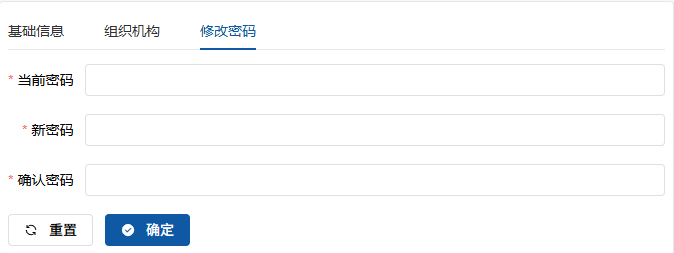
2. Password Change Interface
3. Operation Steps
- Click "Change Password" tab on Personal Information page
- Enter the following information:
- Current Password (requires original password verification)
- New Password (8-20 characters, containing uppercase/lowercase letters + numbers + special symbols)
- Confirm New Password (must match new password)
- Click "Confirm" button to submit changes
4. Password Security Requirements
- Cannot be the same as last used password
- Cannot contain personal information (name, birthday, etc.)
- Recommended to update every 90 days
5. Modification Results
- Success: System prompts "Password changed successfully", requires re-login
- Failure: Displays specific error reason (e.g. wrong current password)
6. Precautions
- 5 consecutive incorrect attempts will lock account for 30 minutes
- All logged-in devices will automatically log out after modification